Create SMM panel using socpanel is the most practical way to turn this idea into a fully automated SMM business with your own domain, providers, and payment systems. With the Socpanel script, this process becomes accessible even if you don’t have technical skills or development experience.
In this comprehensive guide, you’ll learn how to create your own SMM panel using Socpanel, step by step — from clicking “Create panel” to setting up providers, services, payment methods, and launching a fully functional platform.
This article is based on real interface usage, not theory.
What Is an SMM Panel?
An SMM panel is a web-based platform that allows users to purchase a wide range of social media marketing services in one place. These services typically include followers, likes, views, comments, saves, and other engagement actions across popular platforms such as Instagram, TikTok, Telegram, YouTube, X (Twitter), and more.
Most modern SMM panels work through automated API providers, meaning orders are processed and delivered without manual involvement. This automation makes it possible for panel owners to scale their business efficiently while offering fast and consistent service to clients.
What Is SocialPanel?
Socpanel is a ready-made SMM panel script designed to help you launch your own SMM panel quickly and without technical complexity. It allows you to start a fully functional panel without dealing with coding, server configuration, database setup, or custom development from scratch.
With SocialPanel, you can create a branded SMM panel under your own domain, connect multiple API providers, manage services and pricing from a single dashboard, accept payments from clients, and fully automate order fulfillment. This makes Socpanel a practical solution for both beginners and experienced marketers who want to build and scale an SMM panel business efficiently.
It’s widely used by SMM agencies, resellers, and entrepreneurs launching their own SMM platforms. This approach is especially useful if you want to create SMM panel using socpanel without relying on third-party resellers. If you’re still comparing platforms or not sure which solution fits your goals, check out our practical guide on how to choose an SMM panel, where we break down pricing models, provider quality, APIs, and common mistakes beginners make.
Who This Guide Is For
This guide is ideal if you are:
-
an SMM specialist
-
a reseller of social media services
-
running Telegram, Instagram, or TikTok projects
-
launching an SMM business
-
looking for a scalable SMM solution
If you want full control instead of depending on third-party panels, this guide is for you. So how to create SMM Panel using socpanel step by step.
Step 1. Create a Panel in Socpanel
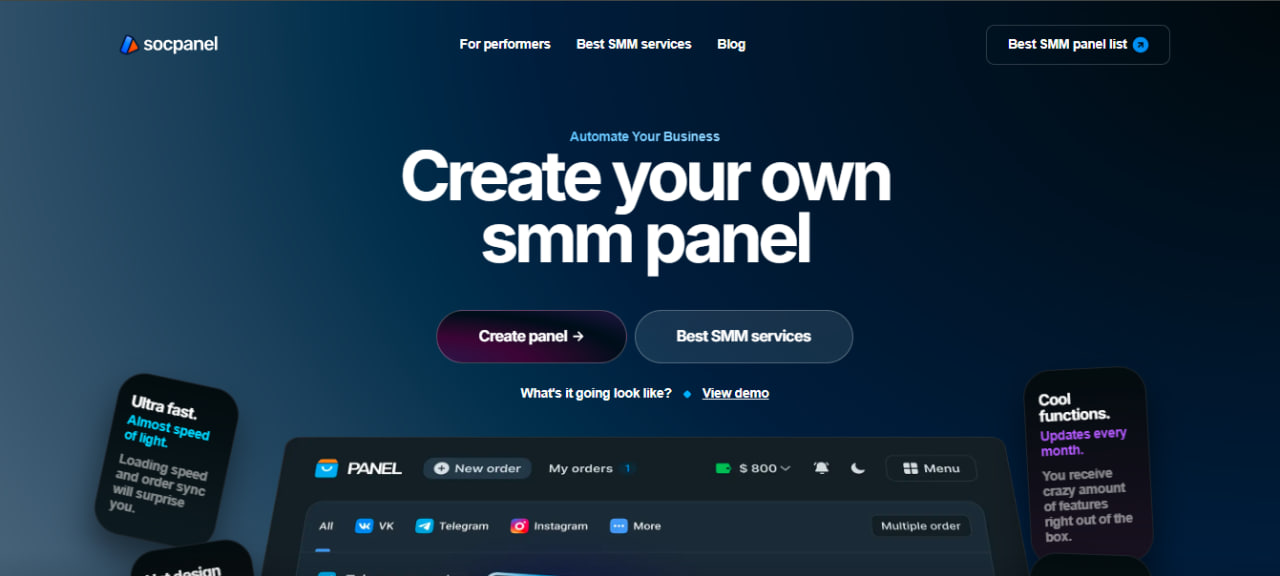
First, open the Socpanel website and access the main dashboard.
Click the “Create panel” button.
Step 2. Register and Confirm Panel Creation
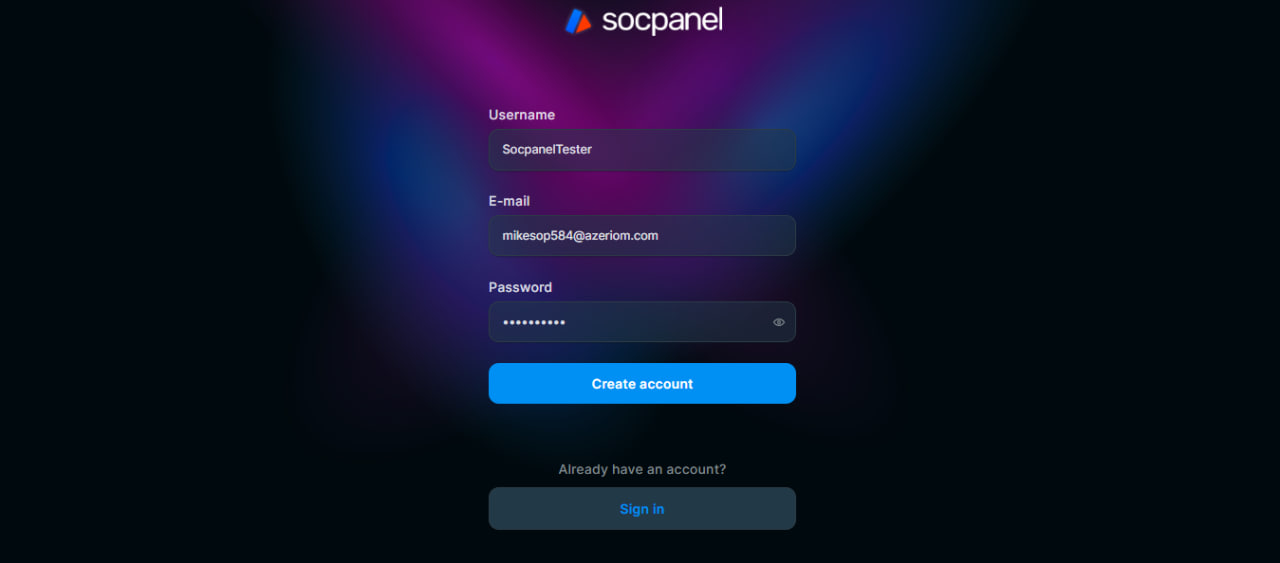
After clicking “Create panel”, you will be asked to register or log in.
Once logged in, Socpanel will offer you to create your own panel.
Click “Create” to proceed.
Step 3. Pay for the Socpanel Script
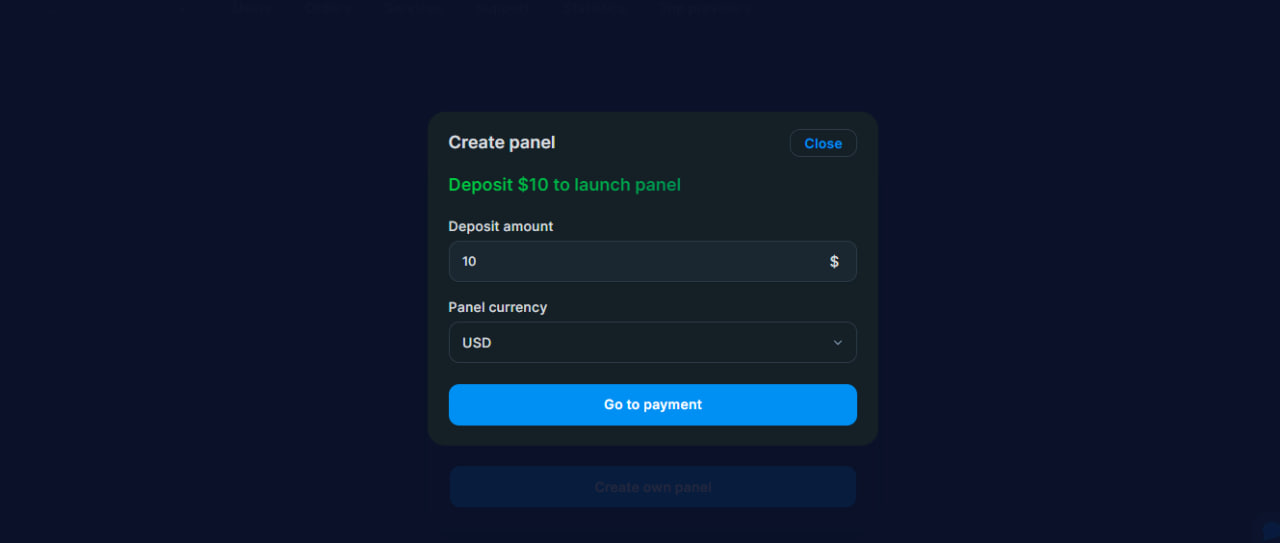
To activate your panel, you need to pay for the script.
-
Script price: $10
-
One-time payment
After payment:
-
Your panel becomes active
-
You gain access to the full admin dashboard
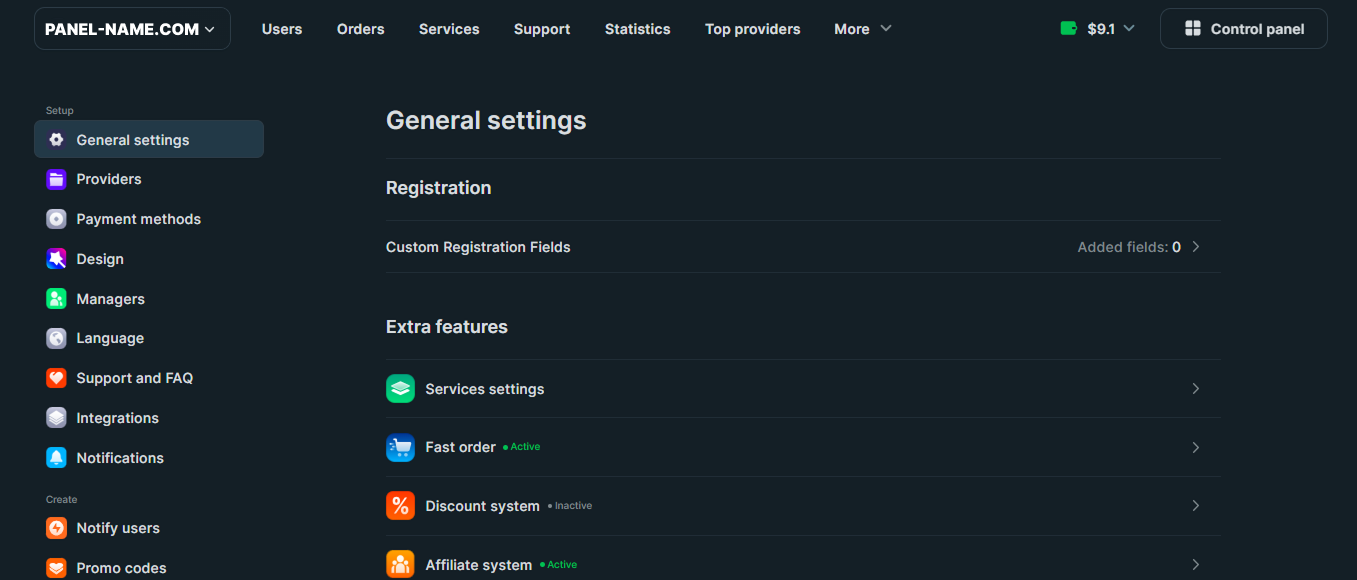
Step 4. Access the Panel Management Dashboard
Once payment is completed, you are redirected to your panel’s admin area.
Top navigation includes:
-
Users
-
Orders
-
Services
-
Support
-
Statistics
-
Top providers
Left sidebar (Setup menu):
-
General settings
-
Providers
-
Payment methods
-
Design
-
Managers
-
Language
-
Support and FAQ
-
Integrations
-
Notifications
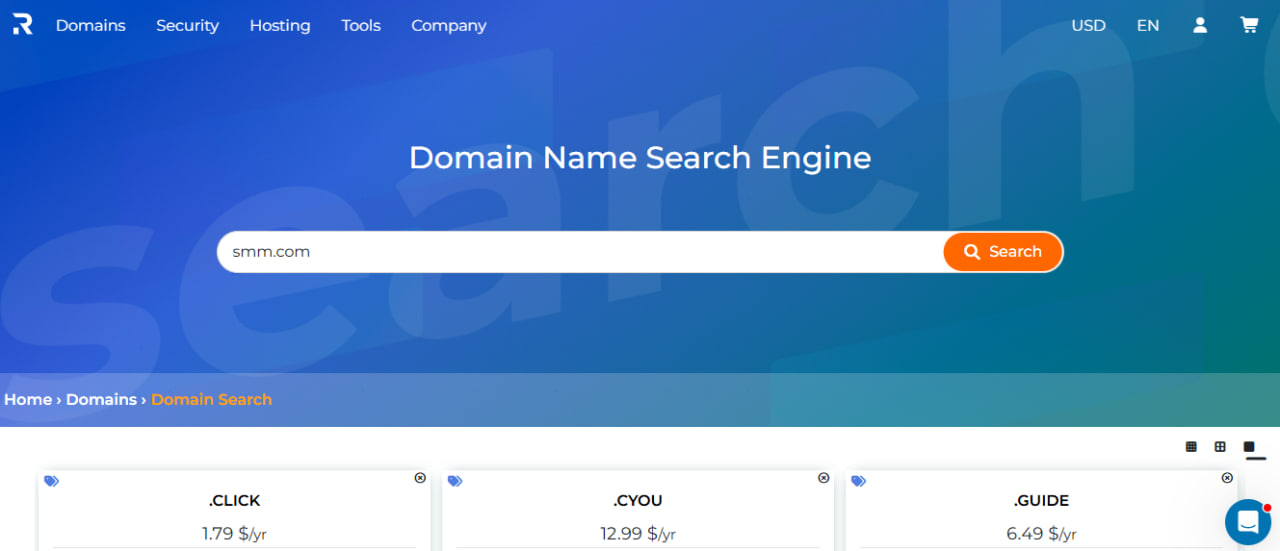
Step 5. Buy a Domain for Your SMM Panel
To fully use your panel, you need your own domain.
You can buy a domain from any registrar.
In this example, we use ru.regery.
Steps:
-
Go to the domain registrar website
-
Choose and purchase a domain
Step 6. Set Up Name Servers (NS) — Mandatory Step
After buying a domain, you must connect it to Socpanel by setting Name Servers (NS).
How to Set NS Servers
-
Open your domain control panel
-
Find “Set NS servers” or “External NS servers”
-
Enter the NS servers provided by Socpanel
-
Save changes
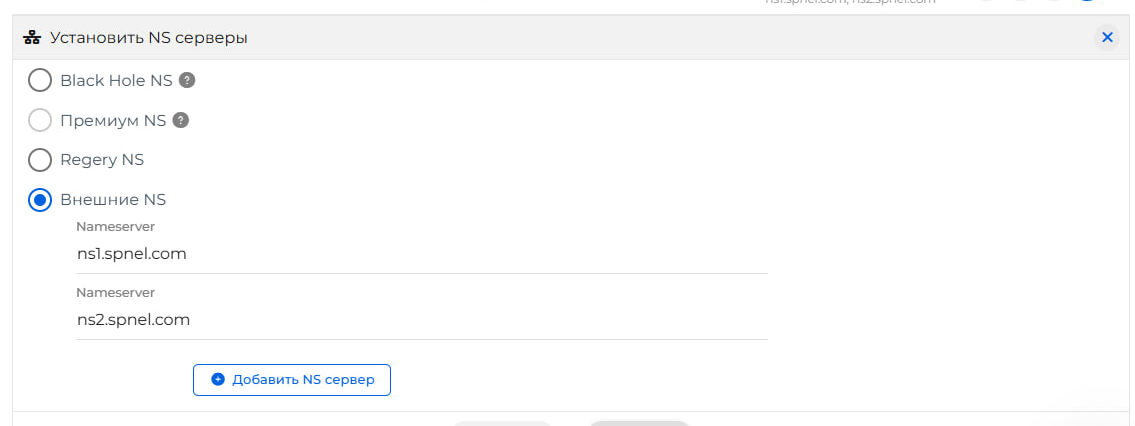
⚠️ Important:
Without changing NS servers, your panel will not work.
NS propagation may take from a few minutes up to several hours.
Step 7. Configure General Settings
Inside your panel admin area, go to:
Setup → General settings
Here you can manage:
-
Registration settings
-
Custom Registration Fields
-
Extra features
-
Services settings
This is the core configuration section of your panel.
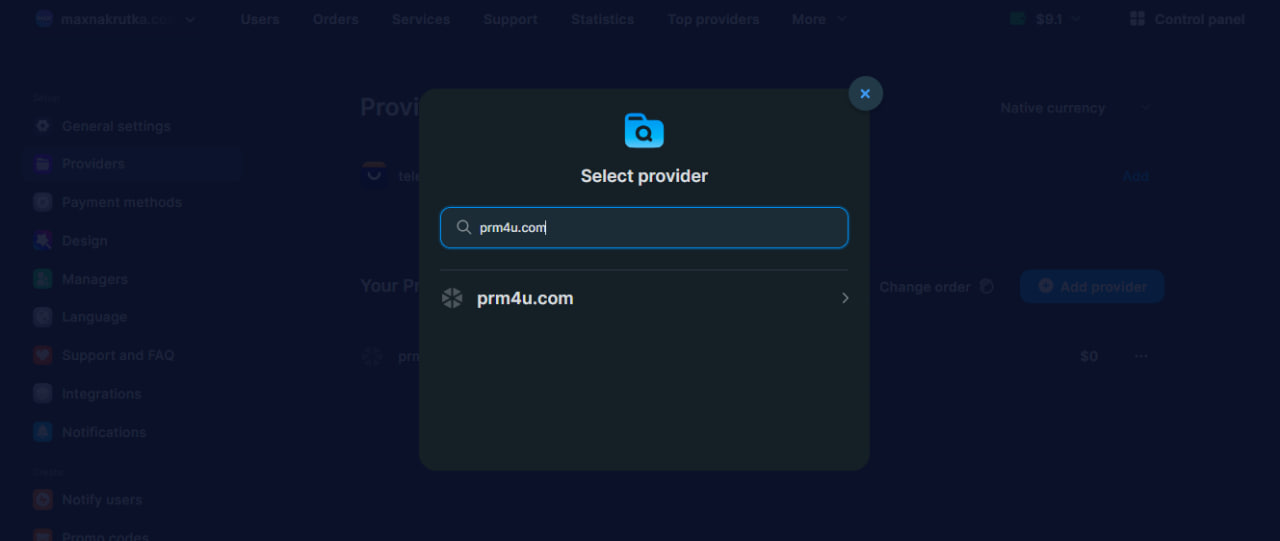
Step 8. Add a Provider (API Integration)
To fulfill orders automatically, you need to connect an API provider.
Go to:
Setup → Providers
Use the search field to find your provider.
In this example, we use PRM4U.
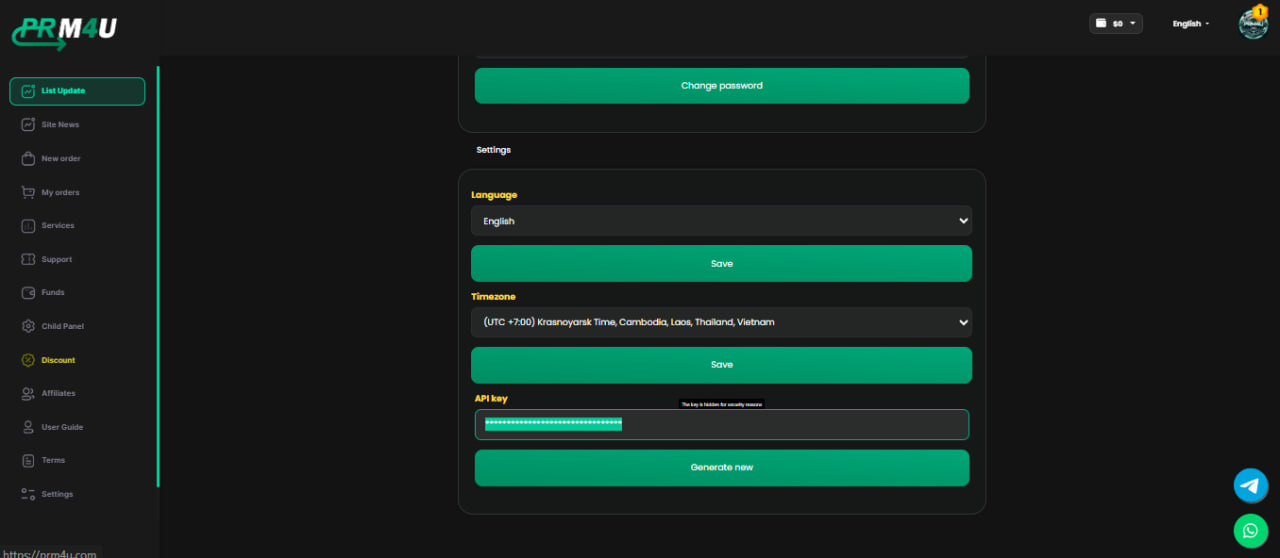
Get API Key From Provider
To connect the provider:
-
Open the provider website (PRM4U)
-
Go to Account settings
-
Scroll to the bottom
-
Copy your API key
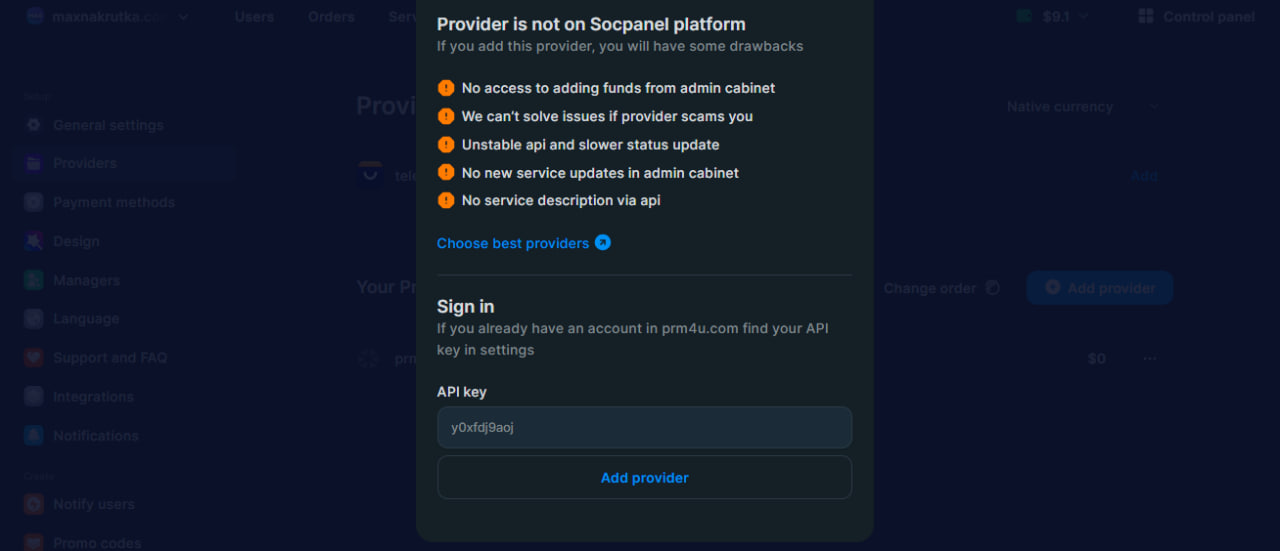
Add Provider in Socpanel
Return to Socpanel and:
-
Paste the API key
-
Confirm provider connection
Once saved, the provider becomes active and available.
Step 9. Create a Service
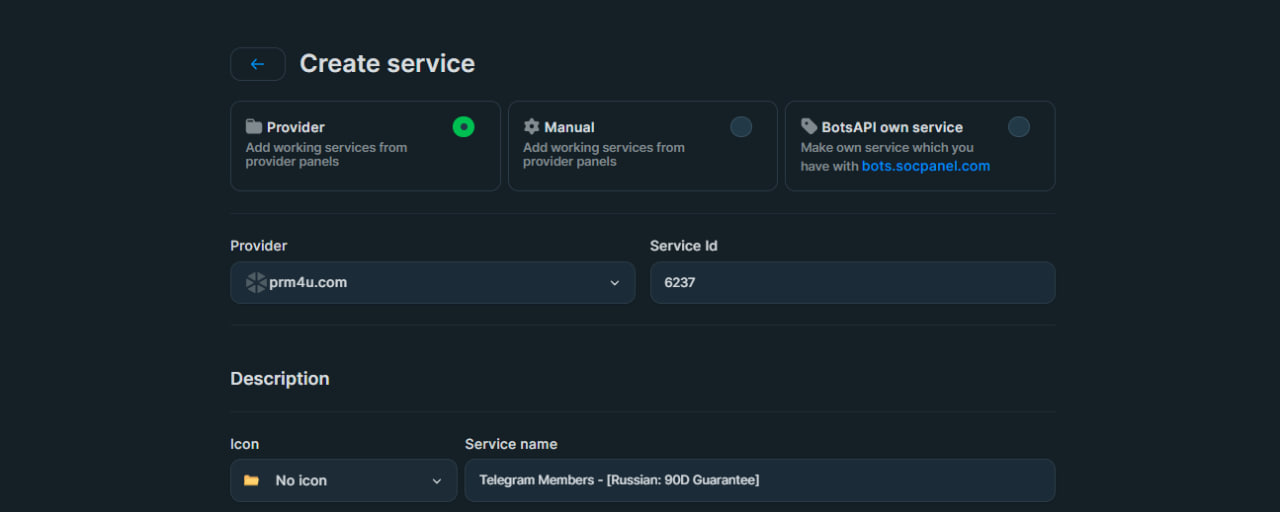
To add a service:
-
Go to Services
-
Click Create service
-
Select the provider
-
Enter the Service ID
-
Example: Telegram Followers
-
-
Set your price
Pricing and Margin
It’s important to calculate pricing correctly:
-
Consider provider cost
-
Analyze competitors
-
Define your margin strategy
Pricing is fully up to you.
Step 10. Create Required Pages for Payments
Before adding payment methods, your site must have these pages:
-
Contacts
-
Privacy Policy & Refund Policy
-
Terms of Service
Go to the page management section and create them.
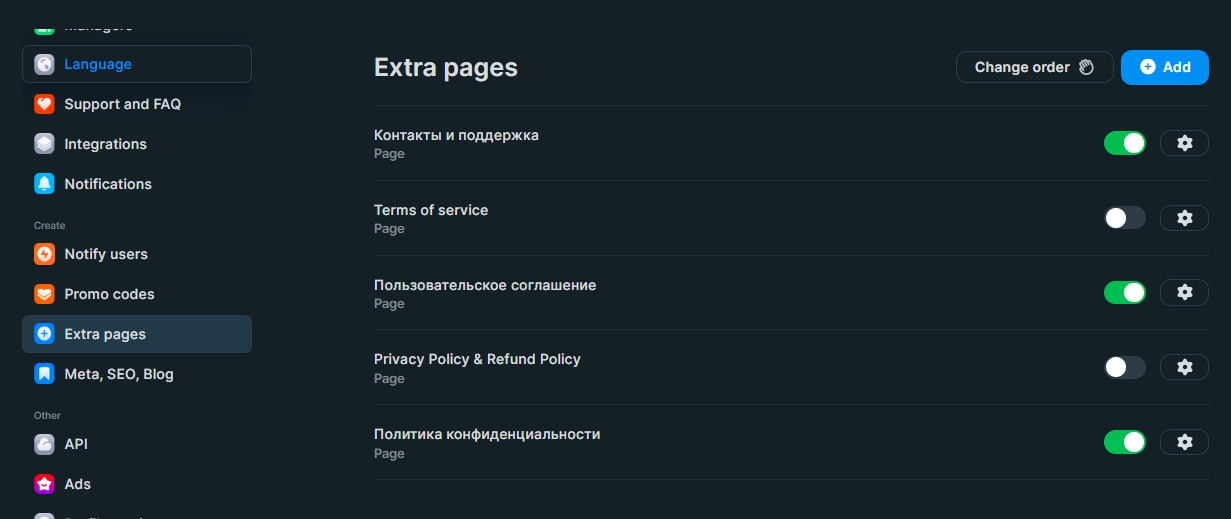
Most payment gateways will not work without these pages.
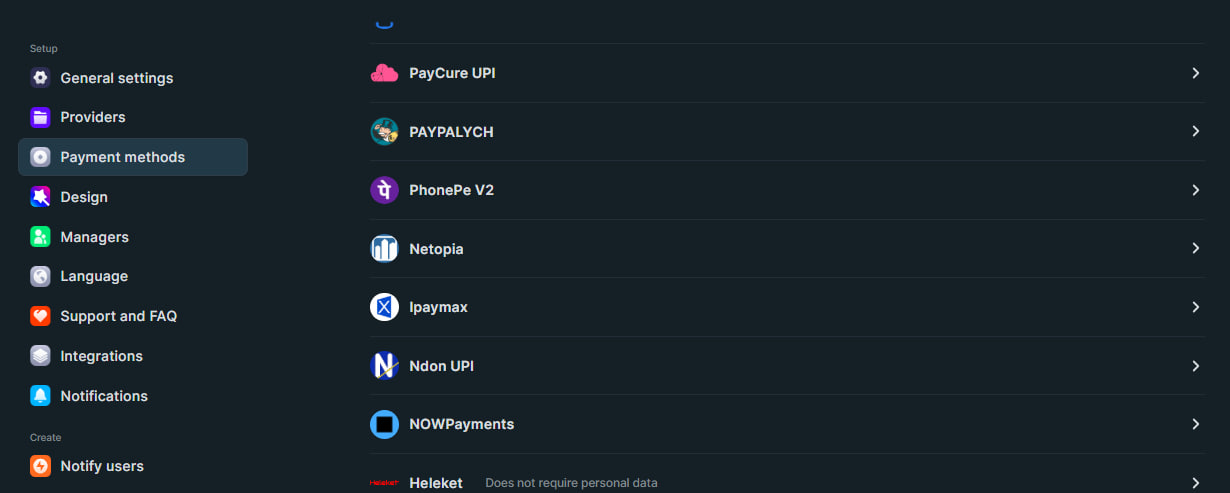
Step 11. Add Payment Methods
Now go to:
Setup → Payment methods
Choose a payment gateway.
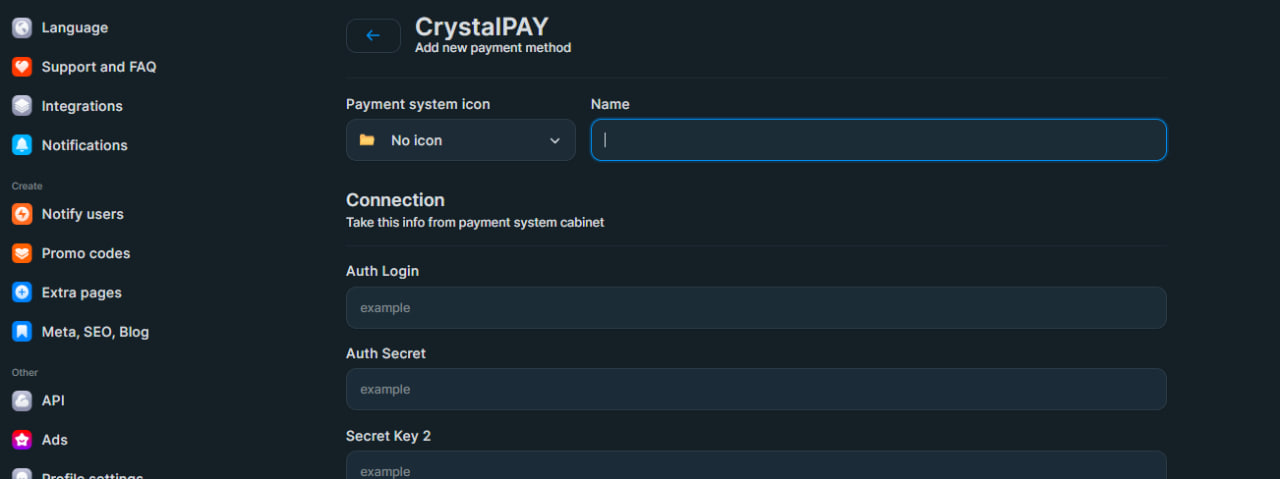
In this example, we use CrystalPay.
Steps:
-
Select CrystalPay
-
Set payment name (e.g. “Card payment”)
-
Open CrystalPay website
-
Get required credentials:
-
outs-login
-
outs-secret
-
secretkey2
-
-
Enter them in Socpanel
-
Save settings
Step 12. Final Testing Before Launch
This guide shows how to create SMM panel using socpanel without developers, complex hosting, or large upfront investments. Before making your SMM panel publicly available, it is extremely important to run a full internal test. Even if everything looks correct at first glance, small configuration mistakes can lead to lost money, broken orders, or unhappy users after launch.
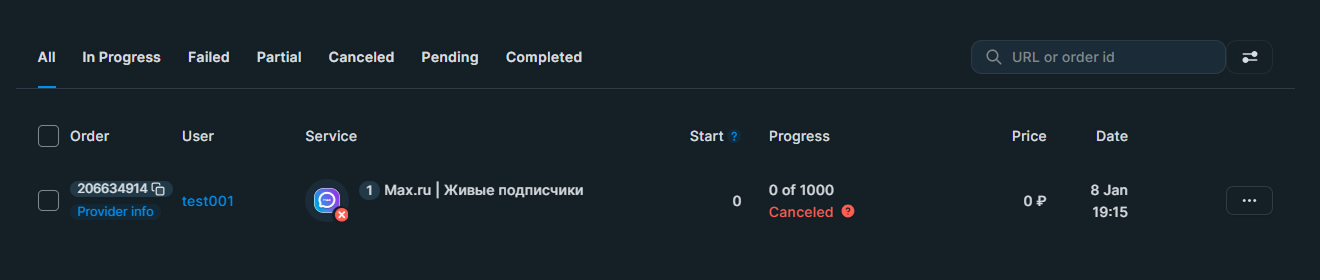
Start by creating a test user account on your panel. This allows you to see the platform exactly as a client would: from balance top-up to placing an order. Next, add a small test balance using your configured payment method or manual balance adjustment.
After that, place a test order for one of the services you have created (for example, Telegram followers or Instagram likes). Carefully check whether the balance is deducted correctly, the order status changes as expected, and the request is successfully sent to the provider.
Finally, confirm that the order is actually delivered by the provider and that the panel updates the order status correctly (Completed / Partial, etc.). This step helps you ensure that API connections, service IDs, and pricing logic are working properly.
Testing your panel before launch helps prevent critical errors, refund requests, and reputational damage. Spending 10–15 minutes on testing can save you hours of troubleshooting later.
Common Mistakes to Avoid
-
skipping NS setup
-
using only one provider
-
not testing services
-
incorrect pricing strategy
-
missing legal pages
Avoiding these mistakes saves time and money.
How many days does it take to create smm panel using Socpanel?
In most cases, you can create smm panel using socpanel in less than 24 hours if providers and payments are ready.
-
panel creation: 10 minutes
-
domain & NS setup: 30–60 minutes
-
provider & services: 1–2 hours
You can launch within the same day.
Final Thoughts
Creating your own SMM panel using the Socpanel script is one of the fastest and most practical ways to enter the SMM market. You get full control over branding, pricing, services, and automation without the need for developers or complex technical setups.
You do not need expensive hosting, custom code, or large upfront investments. All you need is a domain, reliable SMM providers, properly configured payments, and a clear business strategy.
Socpanel allows you to focus on growth and marketing instead of technical issues, making it an excellent solution for both beginners and experienced SMM entrepreneurs.
In future articles, we will cover:
-
how to get your first clients for an SMM panel
-
the best traffic sources for SMM panels
-
scaling strategies and automation for long-term growth
If you want to create SMM panel using socpanel, this step-by-step setup will help you launch within one day.